

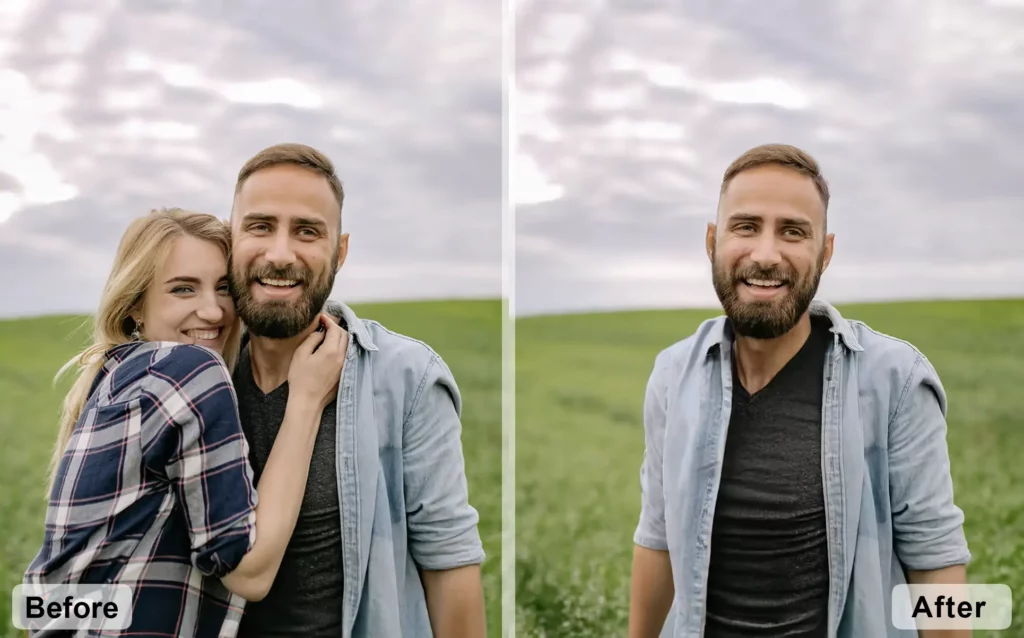
Have you ever been upset when an unintentional photobomber ruins a perfect photo opportunity? While appreciating stunning landscapes or having a good time with friends, someone suddenly enters the frame or a friend purposefully makes a hilarious look just as you shoot the picture.
However, there is one advantage to consider: you have the opportunity to keep a photobomber from ruining your perfect shot. With the assistance of excellent photo editing software, you can easily eliminate unwanted people from your images, ensuring that your treasured memories seem just as you want.
For you. In this post, I’ve discussed all of the techniques to delete an undesired individual from a photo. If you use Photoshop or wish to edit images on your phone, we’ve covered both.
Why you should clean the photos?
Unwanted Attention: Remove the pesky photobombers who crashed your perfect moment.
Control Your Memories: Edit out people from group photos who no longer bring you joy.
Focus on What Matters: Improve composition by removing distracting background people.
Create a Clearer Message: Highlight the main subject in professional or marketing photos.
Protect Yourself: Remove people who haven’t consented to having their image shared publicly.
Personalize Memorials: Edit photos of loved ones who passed away for a more private remembrance.
How to Remove People from Photos in Photoshop
Note: If you are using the jack sparrow version of Photoshop, you won’t be able to use few methods. You must have the licensed version.
Now let’s dive into the tutorial:
I am going to discuss 3 methods to remove someone from the photo, and those are:
- Using generative fill (which is the easiest and produces the most precise result)
- Using content-aware fill
- Using Remove Tool
Remove People from Photo in Photoshop using Generative Fill
Step 1: Open the image in Photoshop and drag and drop the image you want to edit into it.
Step 2: After that, select any selection tool and make a selection of the subject we want to remove. Always select some extra pixels outside the edge; it will help in getting a flawless result.
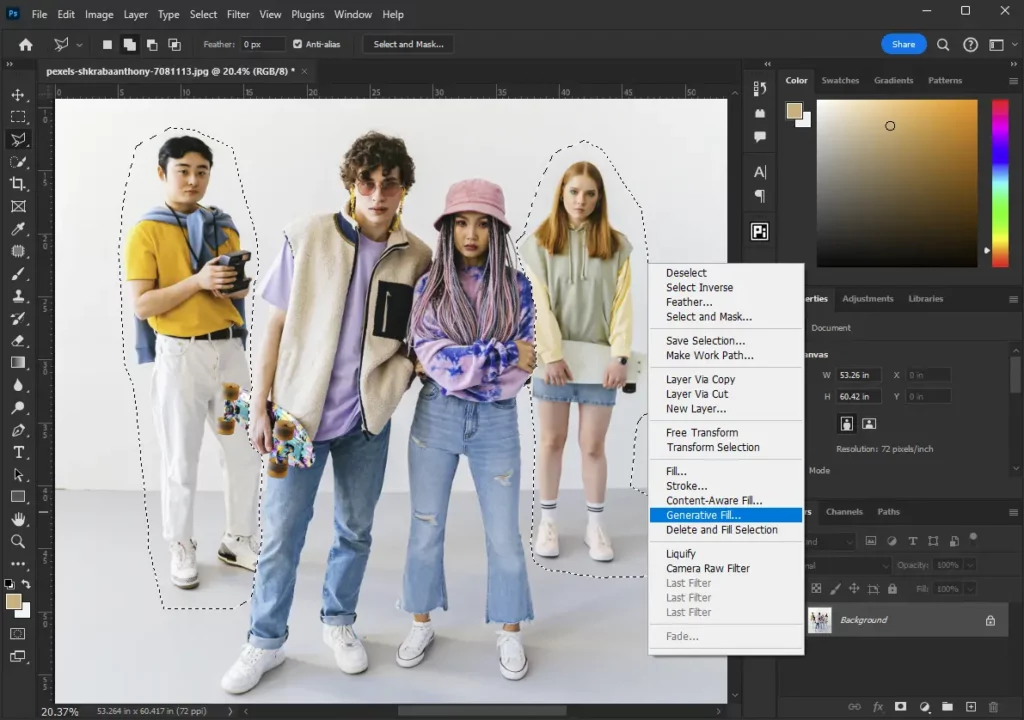
Step 3: Now right-click the mouse and tap on generative fill. Or, go to edit and choose generative fill.
Step 4: In the prompt input area, write “Remove the subject and fill the part using the surrounding area,” or you can leave it empty and click on Generate.
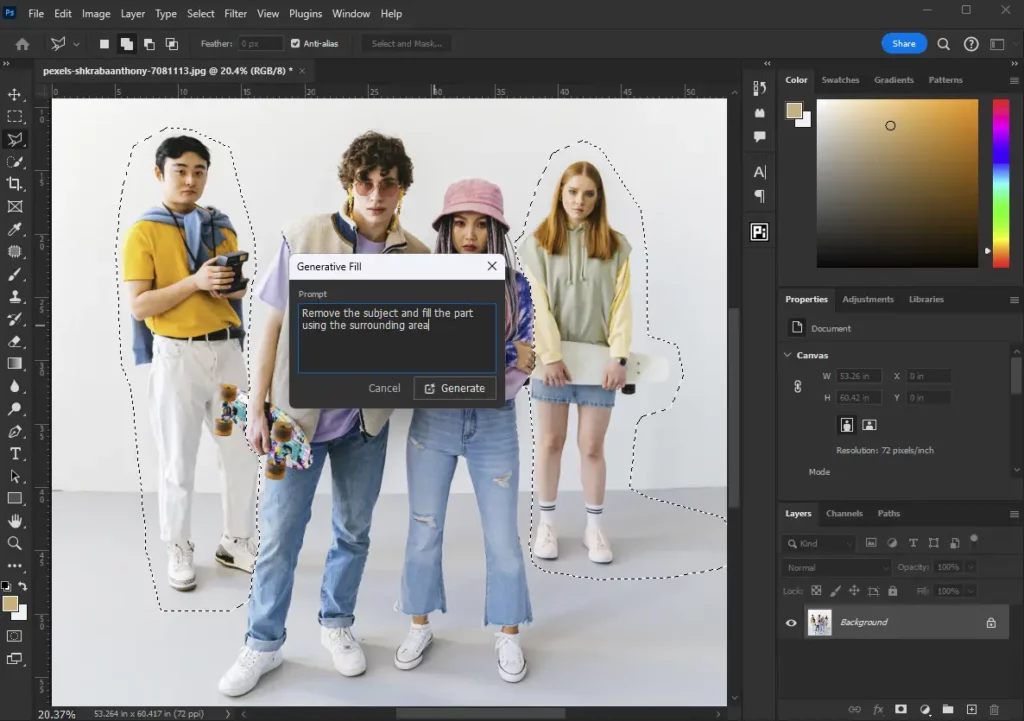
Step 5: It will take a couple of seconds to process in the cloud. You will see 3 variations once it’s done. If you are not happy with the result, you can generate more variations to achieve the desired results.
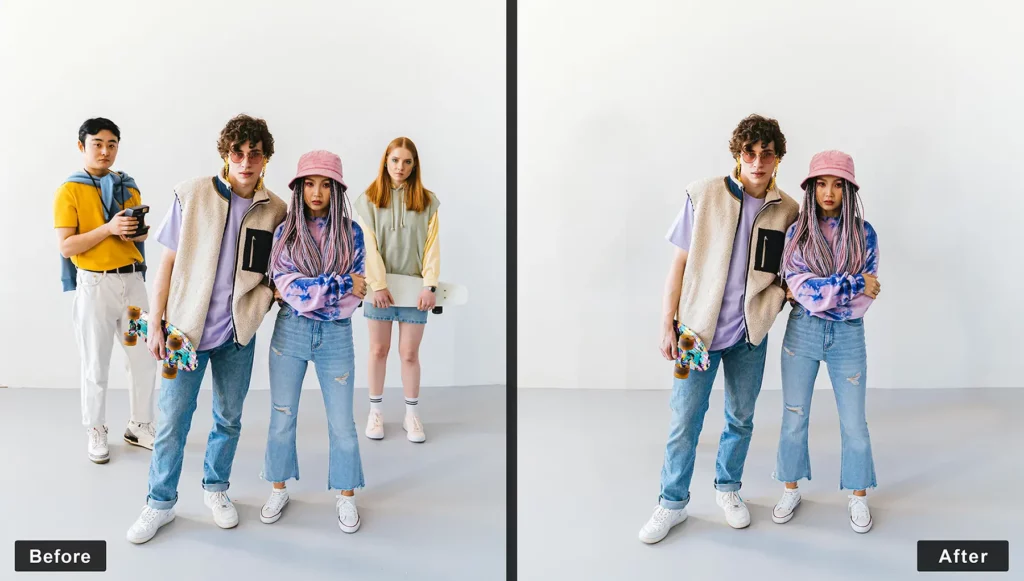
Once you are happy with the result, save the image.
See the before and after results below.
Delete Photobomber in Photoshop Using Content Aware Fill
Photoshop content aware fill is also a prominent tool to remove something from the image. To make sure you get the best result, let’s break down each step:
- Select the people: Use the select subject tool to select the people you want to remove. For precise adjustments, use the Lasso Tool (L key) afterwards.
- Fill the empty space: Right-click the selection and choose “Fill.” Select “Content-Aware” to smartly replace the area with matching background details.
- Refine the results: The automatic fill might need some touch-ups. Use the Healing Brush Tool (J key) to seamlessly blend the filled area with the surroundings. For specific areas, use the Clone Stamp Tool (S key) to copy textures from a similar part of the image.
Remove Someone from Photo Using Remove Tool
- Select & Zoom: Open your image and choose the Remove Tool (J key). Zoom in (Ctrl/Cmd +) for precise work on the area with the unwanted person or object.
- Brush & Paint: Adjust the brush size ([or]) to match the object. Carefully brush over the person or object you want to remove. Photoshop will analyze the surroundings and fill the space automatically.
- Refine & Review: After using the Remove Tool, use the Clone Stamp Tool (S key) to copy textures from a similar area, or use the Healing Brush Tool (J key) to blend the filled area seamlessly. Examine the final result to determine any necessary adjustments.
- Save: Once you’re happy, save your edited image (File > Save As).
We are done with all the ways to remove someone from a photo on the desktop. Now, let’s see how you can do the same in the mobile app.
There are 3 apps in which we can easily remove someone from a photo.
Remove Someone from Photo Using PicsArt
Removing a person from a photo might sound tricky, but with PicsArt, it’s simple and fun! Here’s a step-by-step guide to help you seamlessly edit your images.
- Create New Design
To get started, launch the PicsArt app and hit the purple + sign at the bottom of the screen. Browse your picture collection and choose the image you wish to work with.
- Open the Clone Tool.
Go to the bottom of the screen and select “Tools.” To get started, pick the “Clone” tool from the list.
- Familiarize Yourself with the Tools
If you’re new to the cloning feature, a tutorial will guide you through. You’ll use three main tools:
Pointer: Selects the area of the photo to copy.
Brush: Applies the copied material to different parts of the photo.
Eraser: Functions as an undo button, letting you erase recent changes.
To adjust the brush settings, tap the white arrow on each tool’s icon.
- Set Up Your Tools
First, adjust the pointer tool size for precision. A smaller pointer provides more accuracy. Then, match the brush tool size to the pointer’s size, as they work together. Finally, set the brush “Opacity” to 100% for complete coverage if you want to remove someone entirely.
- Remove the Person
Select the pointer tool and place it on the background near the person you want to remove. This will superimpose the background onto the person. Be careful not to let the pointer touch the person, as it copies everything it touches.
- Pro Tip: Work in stages. Remove the person in small sections, releasing the brush and repositioning the pointer as needed.
- Final Touches
Once the person is removed, you can refine your photo. Select “Tools” again and tap “Crop” to draw a frame around the portion you wish to keep. Click “Apply” in the upper right-hand corner.
- Save or Share Your Work
Finish by clicking “Next” in the upper right-hand corner. Choose whether to save your edited photo or share it directly from the app.
Alternative Method: AI-Powered Object Remover
PicsArt also offers an AI-powered object remover. Simply click the remove button, brush over the person or object you want to erase, and let the AI do the work. Note that access to this feature might require a subscription.
With these easy steps, you can seamlessly remove anyone from your photos using PicsArt. Happy editing!
Conclusion
Removing unwanted people from your photos is simple with the right tools. Whether you’re using Photoshop or PicsArt, you can easily perfect your images.
Photoshop Options:
- Generative Fill: For precise, AI-assisted edits.
- Content-Aware Fill: Smart Background Replacement.
- Remove Tool: Quick and effective object removal.
PicsArt Tools:
- Clone Tool: intuitive and simple to use.
- AI-powered Remover: It automatically erases unwanted objects.
By mastering these techniques, you can ensure your photos capture your memories exactly as you want. Happy editing!